SFTP-Only User and Chroot Setup on Linux with OpenSSH
A dedicated SFTP account can transfer files without receiving an interactive shell. This Linux example separates the protected jail root from the writable upload folder.
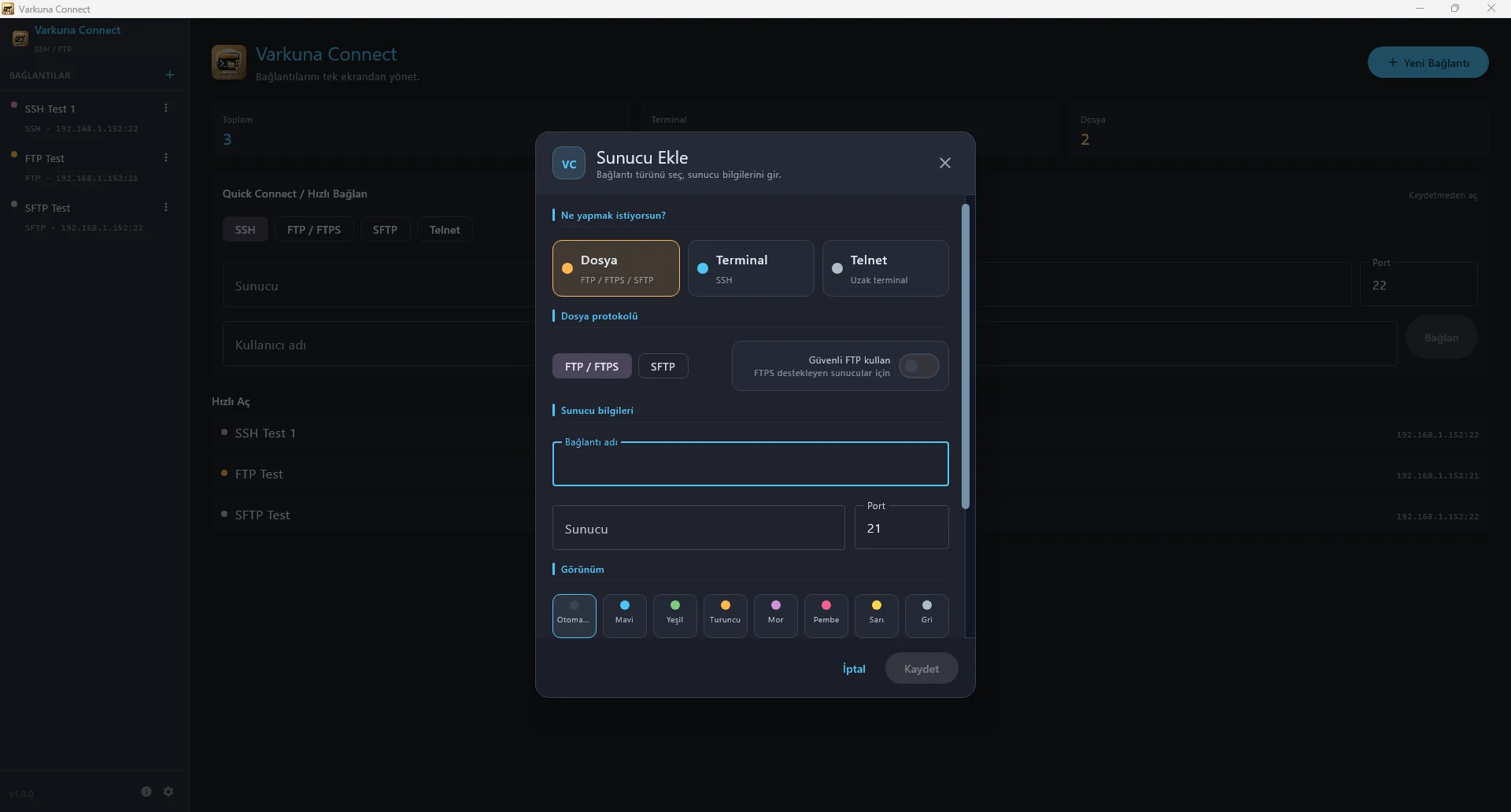
Prerequisites and example layout
This example targets a Linux server with OpenSSH, sudo access and the useradd and install utilities. Confirm the paths and account-management rules on your distribution. Windows NTFS permissions and Windows account creation require a separate procedure.
Use a new dedicated account named transferuser. Its jail will be /srv/sftp/transferuser and its writable destination will be /srv/sftp/transferuser/upload. Inside SFTP, those appear as / and /upload. Keep an existing administrator session and console recovery access available during configuration.
Create the account and directories
First confirm that the account and paths do not already belong to an existing workflow. The commands create a new user and group without a home directory; /upload is its home as seen inside the jail. /bin/sh must exist on the host. ForceCommand below prevents an interactive shell for this account.
The account must have an authentication method allowed by your server. For password login, set a strong password with sudo passwd transferuser only if password authentication is permitted. For public-key login, arrange an authorized-keys location outside the non-writable jail root according to the existing server policy. Do not enable password authentication globally just for this example.
sudo useradd -U -M -d /upload -s /bin/sh transferuser
sudo install -d -o root -g root -m 0755 /srv/sftp
sudo install -d -o root -g root -m 0755 /srv/sftp/transferuser
sudo install -d -o transferuser -g transferuser -m 0750 /srv/sftp/transferuser/upload
Check every parent of the jail root
OpenSSH checks every component of ChrootDirectory. The jail root and its parents must be owned by root and not writable by group or others. Check /srv as well as the directories just created. The writable upload child is deliberately outside that ownership restriction.
If a shared parent has incompatible ownership, select another dedicated path instead of changing unrelated application storage. Do not recursively chown the entire jail to transferuser: that removes the protected boundary and can cause login to fail.
namei -l /srv/sftp/transferuser/uploadRestrict the account to internal-sftp
Back up the active sshd_config and inspect existing Match blocks and included files. Place this account-specific block after global settings without accidentally making later global directives conditional. A per-user Match avoids applying the jail to administrators.
internal-sftp runs inside sshd without copying a shell or supporting libraries into the jail. The -d option selects /upload inside the restricted view. DisableForwarding prevents forwarding features for this account; ForceCommand alone should not be treated as a forwarding restriction.
Match User transferuser
    ChrootDirectory /srv/sftp/%u
    ForceCommand internal-sftp -d /upload
    DisableForwarding yes
    PermitTTY no
Validate, reload and test a separate session
Run sudo sshd -t before reloading. A syntax check does not test live directory ownership or successful authentication, so inspect the effective Match result and perform a real SFTP login afterward. If sshd is outside sudo’s executable search path, use its distribution-specific absolute path.
Reload the SSH service using the command documented for your distribution; it may be named ssh or sshd. Keep the current admin session open. From another client, log in as transferuser, verify pwd, upload a disposable file into /upload and confirm that the jail root rejects writes. Check that an interactive SSH shell is unavailable.
sudo sshd -tCommon setup failures
Inspect server logs for jail ownership, an unavailable /upload directory or account authentication restrictions.
The jail root should reject writes. Select /upload and check its user and group.
Review Match scope and restore the saved configuration through the existing session or console.
Put the guide into practice.
Review the related Varkuna product or open its detailed user guide.