How to Connect to SSH from Android: Step-by-Step Guide
This guide explains the details you need to open a secure terminal connection to a Linux server from your phone, verify the first connection and solve common errors.
What is an SSH connection?
SSH is a network protocol that opens an encrypted connection to a remote server so you can run terminal commands. It is commonly used to update systems, check services, inspect logs and manage server configuration.
Your Android device acts as the client. The remote server must have an SSH service running and your account must be authorized to connect.
Connect only to servers you own or have permission to manage. SSH access can allow direct command execution on the server.
What details do you need?
Get the following information from the server administrator or hosting provider:
A host name or IP address. Do not add http:// or https:// in the SSH host field.
The default is 22, although a custom port may be used for configuration or security reasons.
The account name on the server. It may differ from your hosting-panel or email username.
Use a password or a private SSH key according to the server configuration.
Steps to connect to SSH from Android
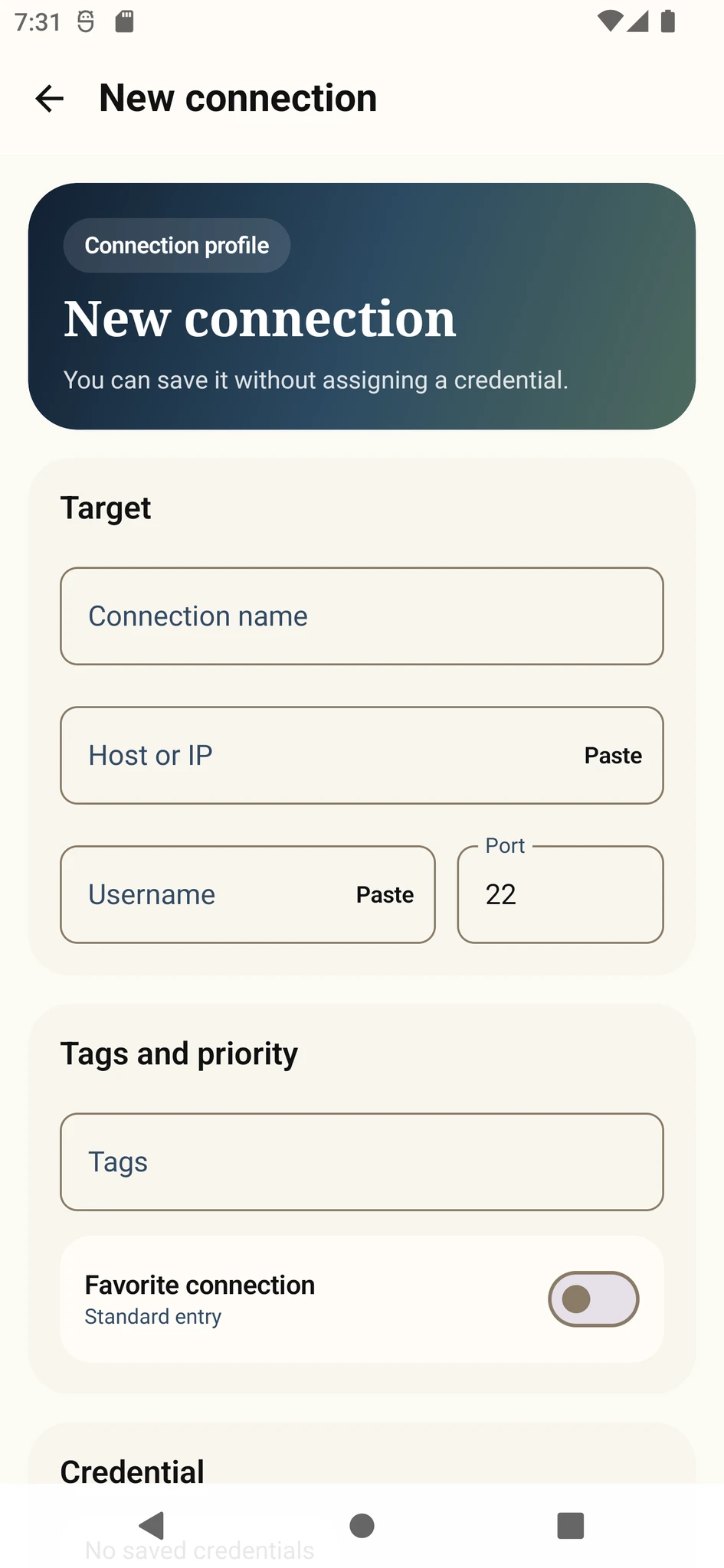
- 1Open a new SSH connection
Create a saved profile for a server you use regularly, or use Quick Connect for a one-time session.
- 2Enter host, port and username
Check for spaces or protocol prefixes. Replace port 22 if your server uses a custom value.
- 3Choose a password or private key
Enter the password or select a private key that has been authorized on the server.
- 4Verify the server key
On first connection, compare the fingerprint with a value supplied by the administrator whenever possible.
- 5Open the terminal session
Start with a harmless command such as whoami or pwd to confirm the active user and directory.
Password or private key?
Passwords are easier to start with but must be strong and unique. Properly configured private-key authentication is more resistant to automated password guessing.
Keep the private key secret. Do not send it through messaging apps or upload it to a public repository, and protect it with a passphrase when possible. Only the matching public key is added to the server.
Someone who obtains the private key may be able to access your account. Keep it on a trusted device in protected storage.
Common SSH connection errors
Connection timed out
The host or port may be wrong, the server may be offline, or a firewall may be blocking the connection.
Connection refused
The server is reachable but no SSH service may be listening on that port. Check the service and port configuration.
Permission denied
The username, password, key or server authorization entry may not match.
Host key changed
The server may have been rebuilt, but confirm the change with its administrator before accepting a new key.
Safer mobile SSH use
Keep the device lock enabled to protect saved connections and local credentials.
SSH traffic is encrypted, but unexpected server-key warnings still require attention.
Read commands copied from the internet or inserted from a command library before running them.
Use exit to leave the remote shell and close the terminal session when finished.
Put the guide into practice.
Review the related Varkuna product or open its detailed user guide.