Varkuna FTP user guide
A practical guide to connecting to FTP and FTPS servers from Android, managing files safely and solving common connection problems.
Open the product page or get the current version before following the guide.
Prepare your FTP details
Connection type and port settings can vary by hosting provider. Follow the values supplied by your provider.
Prepare the FTP server address, username and password. The website address is not always the FTP host.
Prefer encrypted FTPS when your provider offers it. Varkuna FTP supports FTP and FTPS; SFTP is a different protocol.
Use the port and passive-mode requirement specified by your provider.
Create a recoverable backup before deleting, overwriting, editing or changing permissions.
Create an FTP or FTPS connection
-
Step 1
Open New Connection
Create a new profile from the Connections screen.
-
Step 2
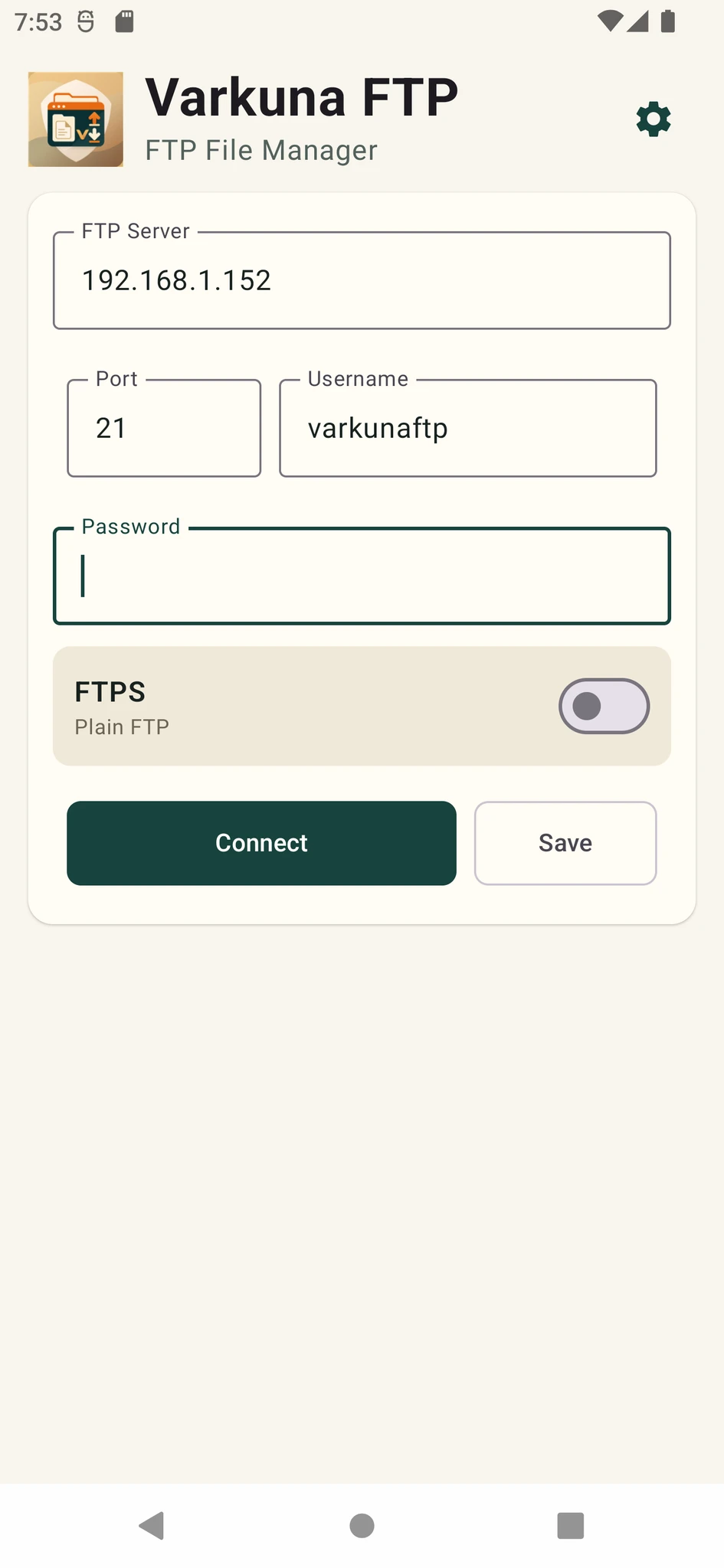
Enter protocol and details
Choose FTP or FTPS and fill in the profile name, server, port, username and optional saved password.
-
Step 3
Connect
Save the settings and start the connection. Review certificate information if FTPS shows a warning.
-
Step 4
Verify the folder list
After connecting, confirm that the expected remote folders are visible.
Upload, download and manage folders
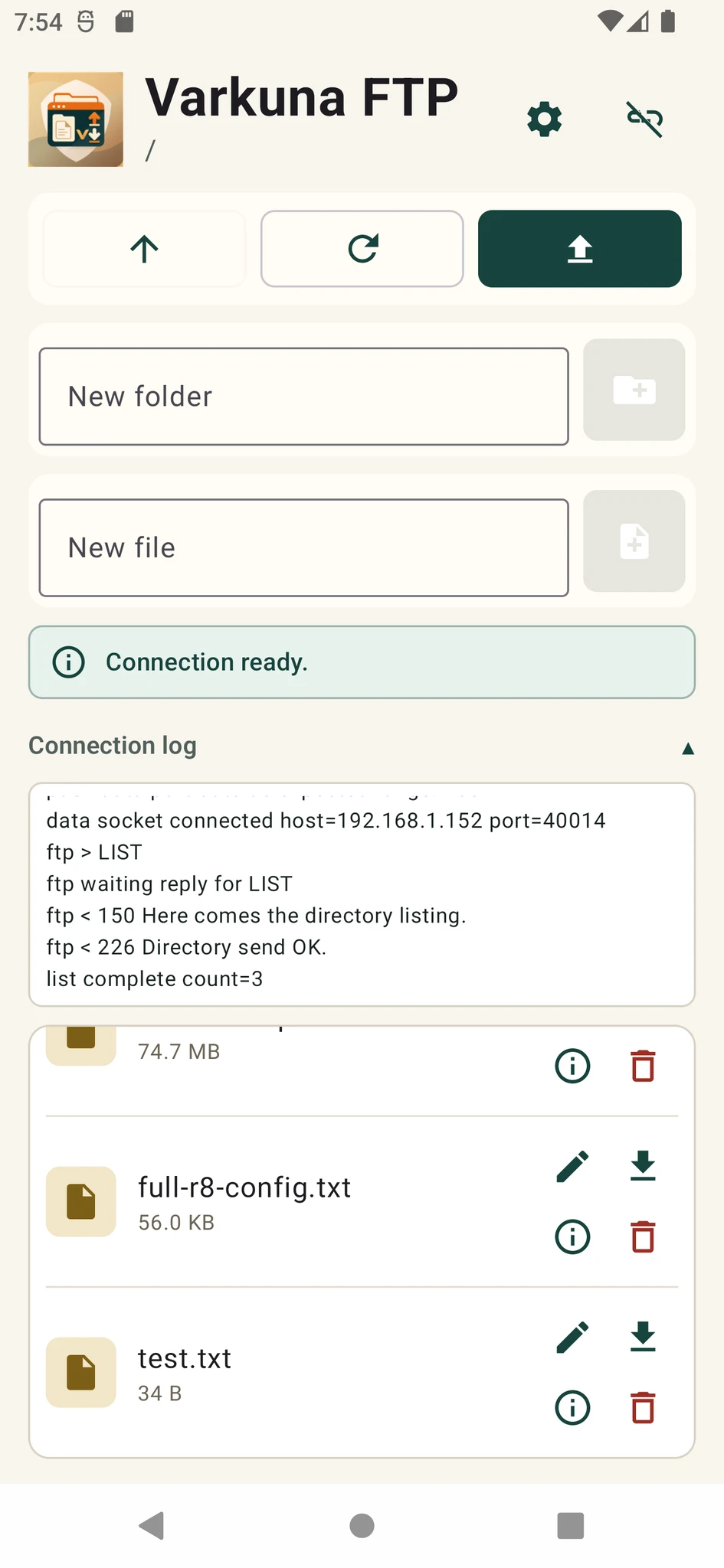
Browse local and remote folders after connecting, then start the required file operation.
-
Step 1
Open the correct folder
Choose the local and remote locations and check that similarly named folders are not mixed up.
-
Step 2
Select the file
Choose a local file to upload or a remote file to download.
-
Step 3
Start and monitor
Check the destination, start the transfer and monitor its completion.
-
Step 4
Verify the result
Confirm the file name, size and final location.
Create folders and rename or delete files and folders.
Edit small UTF-8 text files. Use a suitable desktop tool for large or binary files.
Change CHMOD permissions carefully
When supported by the server, file properties let you review and change read, write and execute permissions.
Note the numeric permission or selected boxes before making a change.
Grant only what the file needs and avoid broad settings such as write access for everyone.
Confirm that the file or web page still works as expected after the change.
If you do not know the correct CHMOD value, follow your hosting provider’s recommendation instead of guessing.
Review certificates and saved details
Connection details stay locally on your device. Saving a password is optional.
On first use or after a change, compare the certificate details with your host and provider.
Do not save passwords on shared or untrusted devices, and keep the device screen lock enabled.
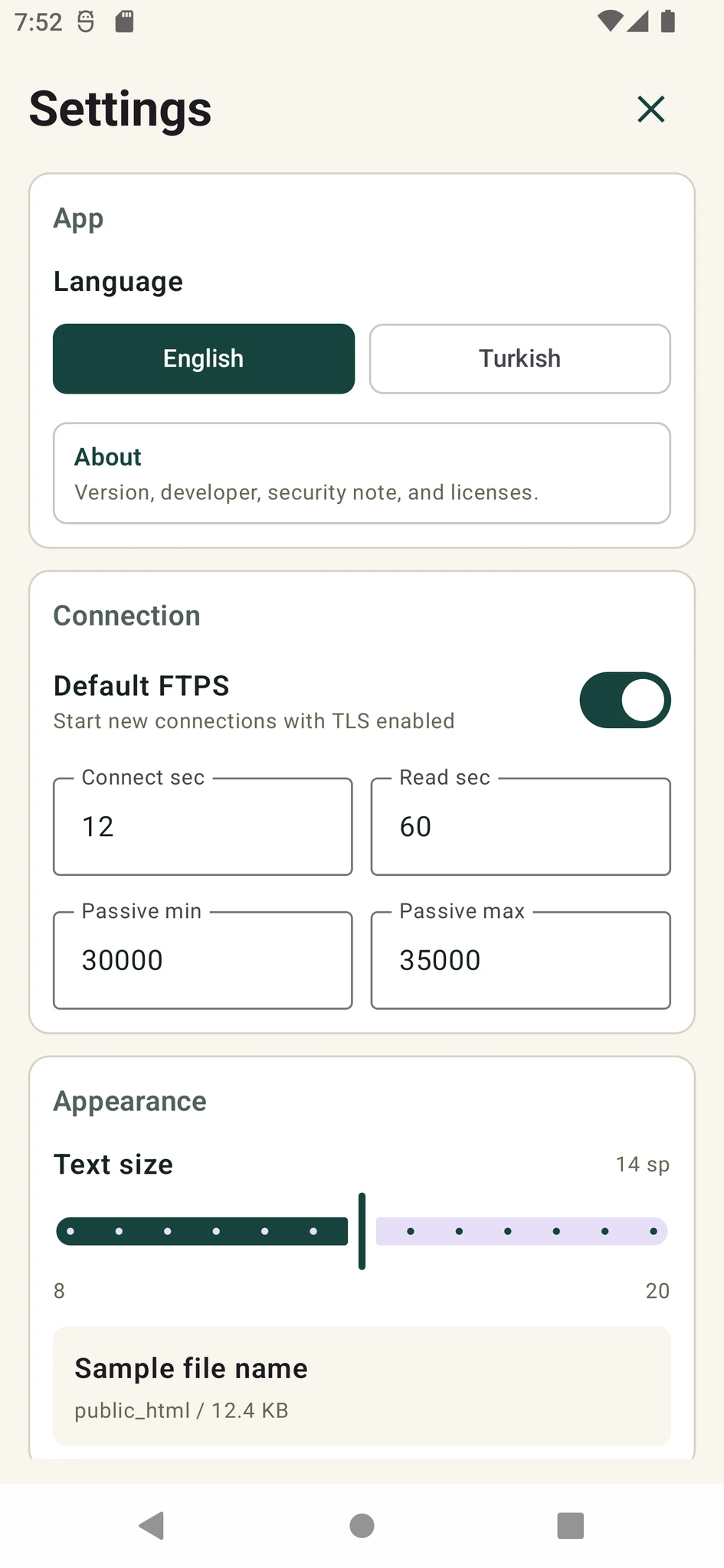
Error lines can help distinguish port, certificate and directory-listing issues.
Troubleshoot FTP and FTPS
Connected but folders are missing
Check passive mode and confirm that the server firewall and passive port range allow the data connection.
Username or password rejected
Recheck the FTP account. Some providers use an FTP username that differs from the hosting-panel username.
Certificate warning
Review its host name, validity period and issuer. Do not approve an unexpected certificate.
Transfer stops midway
Check the network, free storage and file permission. Look for a partial destination file before retrying.
Use the support form for bug reports, suggestions or usage questions.