Varkuna SSH user guide
A step-by-step guide to opening secure SSH sessions from Android, organizing connections and using the terminal tools efficiently.
Open the product page or get the current version before following the guide.
Prepare your connection details
Get the following details from your server administrator or hosting provider before adding the server.
Use the host name or IP address without an http:// or https:// prefix.
SSH commonly uses port 22. Enter the assigned value when your server uses a custom port.
You need an SSH username and either a password or an authorized private key file.
Use these tools only on systems you own or have explicit permission to access.
Create a saved connection
A saved profile keeps the details of a server you use regularly in one place.
-
Step 1
Open New Connection
Choose the option to create a new connection from the home screen.
-
Step 2
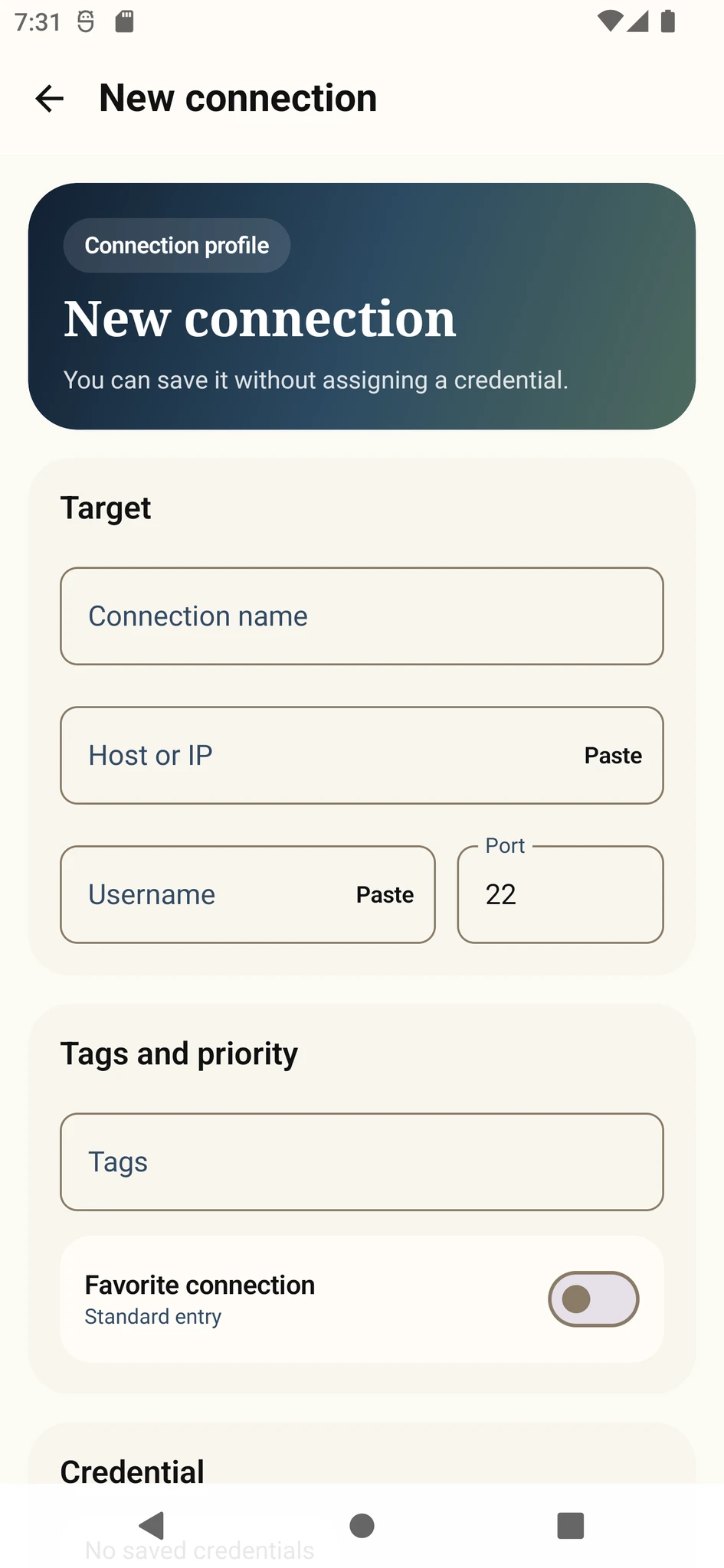
Enter the server details
Fill in a profile name, server address, SSH port and username. Mark it as a favorite if needed.
-
Step 3
Choose credentials
Link a saved password or private-key credential to the server profile.
-
Step 4
Save and connect
Review the details, save the profile and start the connection. Verify the server key on first use.
Use Quick Connect
Use Quick Connect when you need a one-time session without adding the server to your saved list.
-
Step 1
Open Quick Connect
Select Quick Connect on the home screen.
-
Step 2
Enter the details
Provide the server address, port, username and required authentication.
-
Step 3
Start the session
Review the information and connect without creating a permanent server profile.
A saved profile is faster and easier to manage when you connect to the same server regularly.
Manage credentials and server keys
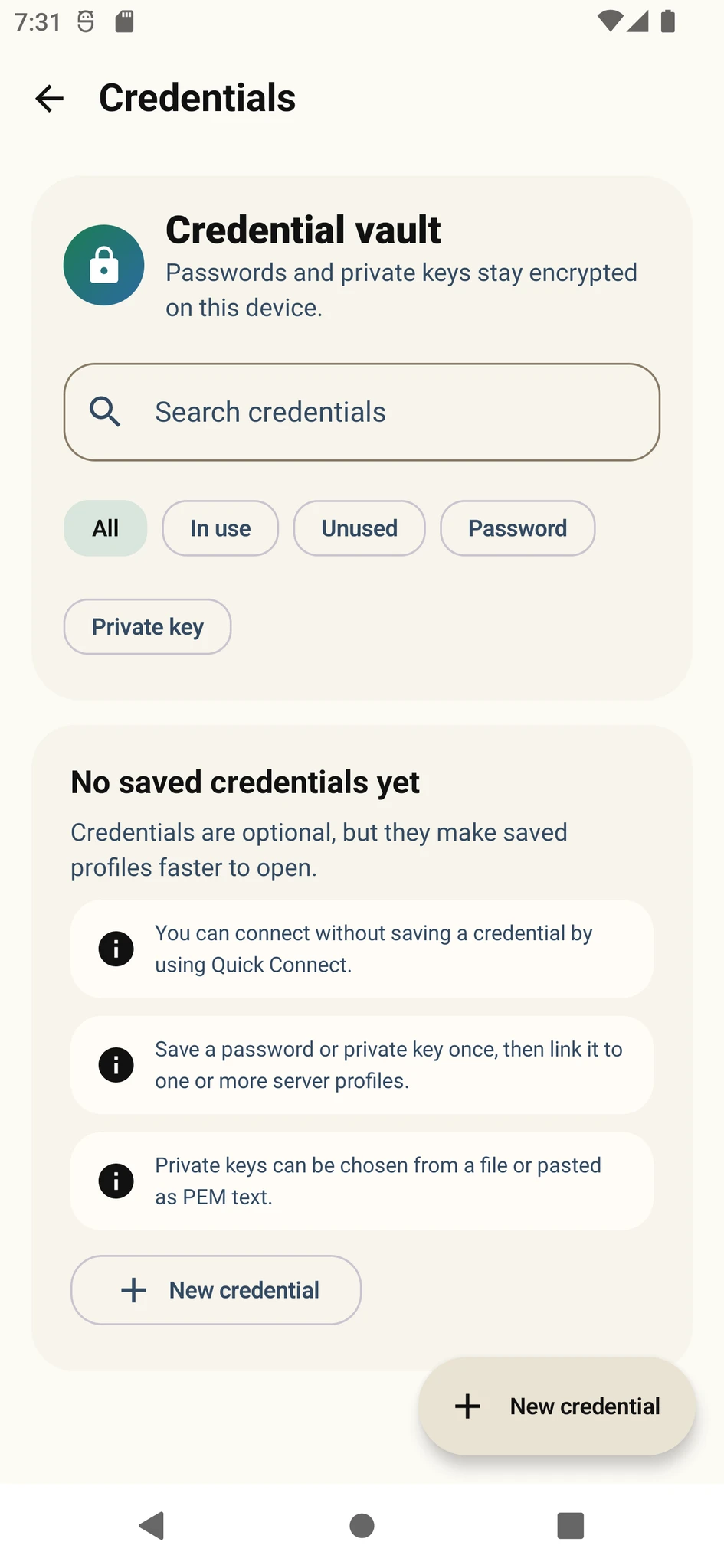
Password or private-key credentials are stored locally on your device and can be linked to a server profile. No Varkuna account is required.
Create a saved credential when your server allows password authentication.
Select the private key authorized on the server and enter its passphrase when required.
On first connection, compare the fingerprint with a value supplied by your administrator whenever possible.
Do not bypass this warning unless you have confirmed that the server was rebuilt or its key was intentionally replaced.
Use the terminal and command library
After connecting, control the terminal with special keys and session tools.
Quickly access terminal inputs such as Ctrl, Esc, Tab and arrow keys.
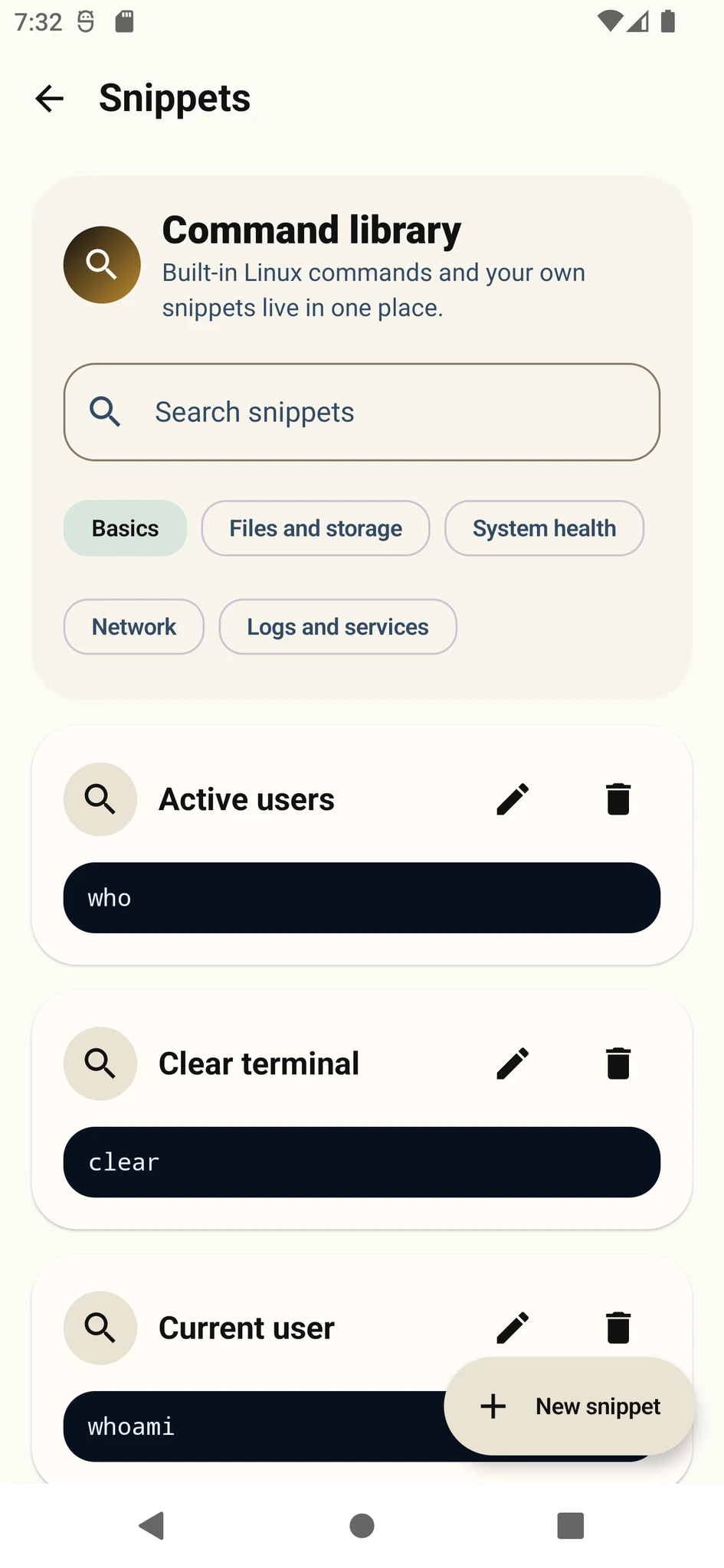
Save frequently used commands and insert them without retyping. Always review a command before running it.
Search terminal output and copy readable text with color and control codes removed.
In focus mode, use the toolbar above the terminal for copy, search, paste, clear, keyboard and exit actions.
Troubleshoot SSH connections
Note the exact error message, then work through these checks in order.
Timeout or connection refused
Check the address and port. Confirm that the server is online, the SSH service is running and its firewall allows the port.
Authentication failed
Verify the username, password and selected key. Confirm that the server accepts the authentication method you chose.
Server key changed
Confirm the change with the administrator before deleting a saved key or accepting a new one.
Terminal input or display issue
Check the keyboard and special-key bar, review terminal font and behavior settings, then reopen the session.
Use the support form for bug reports, suggestions or usage questions.