FTP Connects but Cannot List Directories: Passive Mode Fix
If the username and password are accepted but no files appear, the control connection may work while the separate FTP data connection fails.
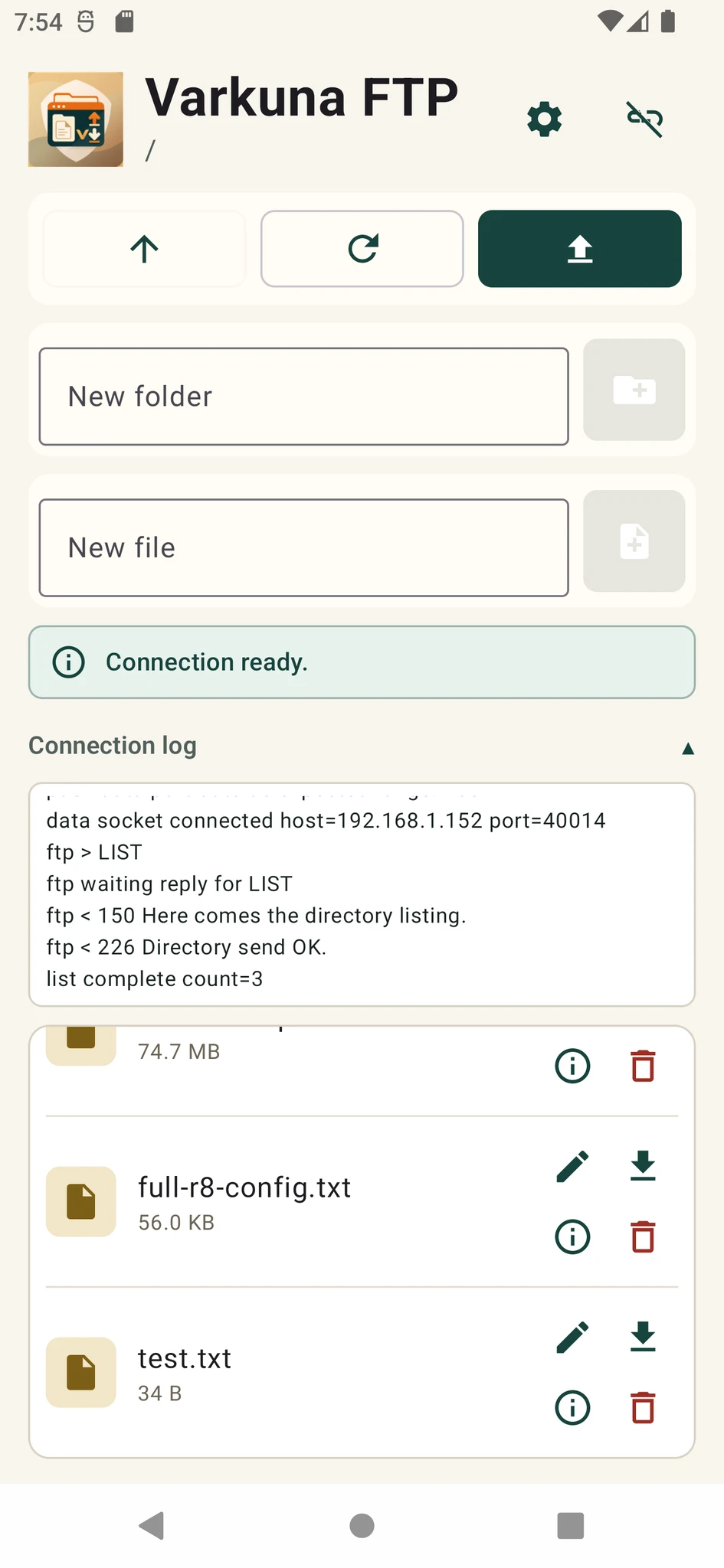
Why does login work but the list fail?
FTP uses a control connection plus separate data connections for listings and transfers. Login can succeed on the control channel while a firewall, NAT or passive-port error prevents the data channel from opening.
The client may stop at “Retrieving directory listing,” report “Failed to retrieve directory listing,” or time out. Retyping the password normally does not solve this stage.
Active vs passive FTP
Phones and home networks are commonly behind NAT, making a server-initiated return connection difficult. Passive mode is usually the practical choice.
Passive mode still requires the data ports announced by the server to be reachable from the client.
| Mode | Who starts the data connection? | NAT/mobile compatibility | Typical use |
|---|---|---|---|
| Passive (PASV/EPSV) | Client connects to server | Better | Preferred on mobile and modern networks |
| Active (PORT) | Server connects back to client | Can be difficult | Specially configured networks |
Client-side checks
- 1Enable passive mode
Turn on passive mode for the connection profile and reconnect.
- 2Verify the security type
Use the correct explicit or implicit FTPS option when the server requires TLS.
- 3Try another trusted network
Switch between mobile data and trusted Wi-Fi to isolate a local network filter.
- 4Read the connection log
A timeout immediately after PASV/EPSV often points to the data port or the advertised IP address.
Configure a passive port range on the server
Define a limited passive port range in the FTP server, then allow the same range in the operating-system firewall and cloud security group. Follow the server software documentation instead of opening an unlimited range.
When the server is behind NAT, its PASV response must advertise an address reachable by internet clients. A private 10.x, 172.16–31.x or 192.168.x address cannot be reached from outside that network.
Define the passive range first, then permit only that range. Opening every high port creates unnecessary exposure.
Additional FTPS checks
The client and server must agree on TLS protection for the channel used by listings and transfers.
Older network helpers cannot inspect encrypted FTPS traffic; use an explicit passive range instead.
Connect using the domain on the certificate instead of a raw IP when appropriate.
The method and port must match what the server expects.
Other causes beyond the network
The account may log in but lack permission to read or enter its starting directory.
The root assigned to the FTP account may have been moved or deleted.
The server may have reached its simultaneous data-connection limit.
They can reveal a data-port, permission or TLS mismatch more clearly than the client.
Transfer type affects file contents during transfer; a directory list that never opens usually points to a data connection or permission problem.
Put the guide into practice.
Review the related Varkuna product or open its detailed user guide.