How to Fix FTP 530 Login Incorrect and Not Logged In
A 530 response means that the FTP server was reached but did not open a session. The cause is usually in the connection details or the server’s account policy.
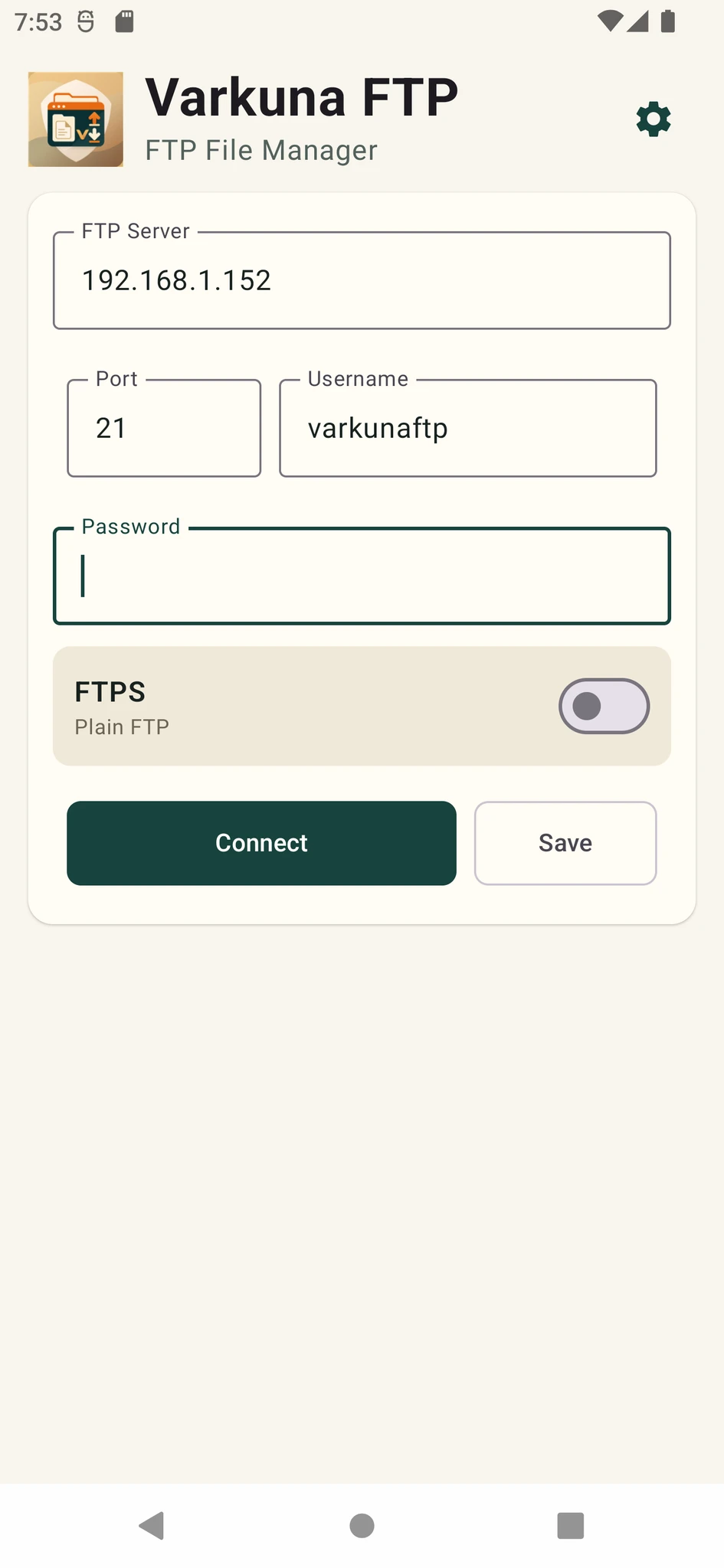
What does FTP error 530 mean?
FTP response 530 commonly appears with “Not logged in” or “Login incorrect.” The client reached the server, but the server rejected the submitted username and password.
This differs from a timeout or port failure. Because the server replied, start with the account details, login format and account restrictions.
A connection log can help support, but remove passwords, saved credentials and access secrets before sending it.
Verify the server and username
- 1Check the FTP host
The website, control-panel and FTP addresses may differ. Use the host supplied specifically for FTP.
- 2Enter the full username
Some hosts require user@example.com or account_user. A shortened username can cause a 530 response.
- 3Retype the password
Check keyboard layout, capitalization, invisible spaces and old autofill values.
- 4Choose the correct protocol
Do not use FTP credentials in an SFTP connection or assume that an SFTP account is also an FTP account.
Do not mix FTP and FTPS settings
Explicit FTPS commonly begins on the normal FTP port and upgrades to TLS. Implicit FTPS may use a separate port. Match the security type and port to the provider documentation.
A wrong security type often produces a TLS or connection error, but some servers may reject the session differently. An explicit setting is easier to diagnose than guessing with an automatic mode.
| Connection | Common port | Security |
|---|---|---|
| FTP | 21 | No encryption |
| Explicit FTPS | Usually 21 | Connection upgrades to TLS |
| Implicit FTPS | Usually 990 | TLS from the beginning |
| SFTP | Usually 22 | Separate protocol over SSH |
The server may be blocking the account
Check that the FTP account is active and has not expired in the hosting panel.
The server may accept logins only from approved addresses; a mobile IP can change.
Repeated failures may trigger an IP block in the server security system.
Old sessions can consume the account’s simultaneous-connection limit. Close other clients and retry later.
Some servers reject login when the assigned FTP root was deleted or is inaccessible.
Before and after resetting the password
- 1Confirm the account name
Make sure you are not changing the password for a different FTP account.
- 2Set it in the hosting panel
Use a strong unique value that follows the provider’s character rules.
- 3Update saved credentials
Replace the old value in the app or link the correct credential to the profile.
- 4Test one client
Stop background clients using the old password so they do not immediately trigger another block.
Changing a password can stop deployment or backup jobs that use the same FTP account.
FTP 530 checklist
Is it the provider’s FTP server?
Is the full required format correct?
Is it current and entered without extra spaces?
Does FTP, explicit FTPS, implicit FTPS or SFTP match the server?
Is it active, unblocked and assigned to a valid home directory?
Put the guide into practice.
Review the related Varkuna product or open its detailed user guide.