How to Fix SSH Permission Denied (publickey,password)
Permission denied appears after the network connection reaches the SSH server but the server rejects your identity. The authentication methods shown in the error help narrow the cause.
What does Permission denied mean?
The message means that the client reached the SSH server but the server did not accept the submitted user identity. Focus on the username and authentication method rather than the network port or firewall.
The publickey, password or keyboard-interactive values in parentheses describe methods offered or attempted during authentication. The exact list depends on server configuration.
Username and password checks
The account may be root, ubuntu, debian or provider-specific. Do not confuse the hosting-panel account with the SSH account.
Check capitalization, keyboard layout, invisible spaces and stale autofill values.
When PasswordAuthentication is disabled, even a correct password is rejected and a private key is required.
Repeated failures, fail2ban or provider policy can temporarily block an account or source IP.
Rapid random attempts can lock the account or IP. Verify the information before trying again.
When using a private key
- 1Select the matching key
Use the private key paired with the public key on the server. Avoid similarly named old key files.
- 2Check the key passphrase
A private-key passphrase is not the server account password; it was chosen when the key was created.
- 3Check the key format
Use an OpenSSH or compatible format supported by the client. A truncated or damaged file cannot be loaded.
- 4Verify the public key on the server
The matching one-line public key must be in the correct user’s ~/.ssh/authorized_keys file.
authorized_keys ownership and permissions
OpenSSH may ignore authorized_keys when ownership or permissions are unsafe. The home directory, .ssh directory and key file should not be writable by unrelated users.
A common setup is 700 for .ssh and 600 for authorized_keys. Group policy, ACLs or centralized identity systems may differ, so inspect the existing server policy first.
chmod 700 ~/.ssh
chmod 600 ~/.ssh/authorized_keys
chown -R "$(id -un)":"$(id -gn)" ~/.sshsudo journalctl -u ssh --since '10 minutes ago'
# The service may be named sshd on RHEL/FedoraApply ownership and permission changes only to the .ssh directory of the account you are troubleshooting.
Review server configuration
Must be enabled for public-key authentication.
Shows whether the server reads keys from a non-default location.
The account may not be in the list of permitted users or groups.
Root login may be disabled or restricted to key authentication.
Run sudo sshd -t after editing sshd_config. Keep the current administrator session open until a new connection succeeds.
Quick diagnosis order
- 1Verify the username
Keys and passwords for one account do not authenticate another account.
- 2Identify the allowed method
Use a key when password login is disabled, or another method explicitly allowed by the server.
- 3Select the correct credential
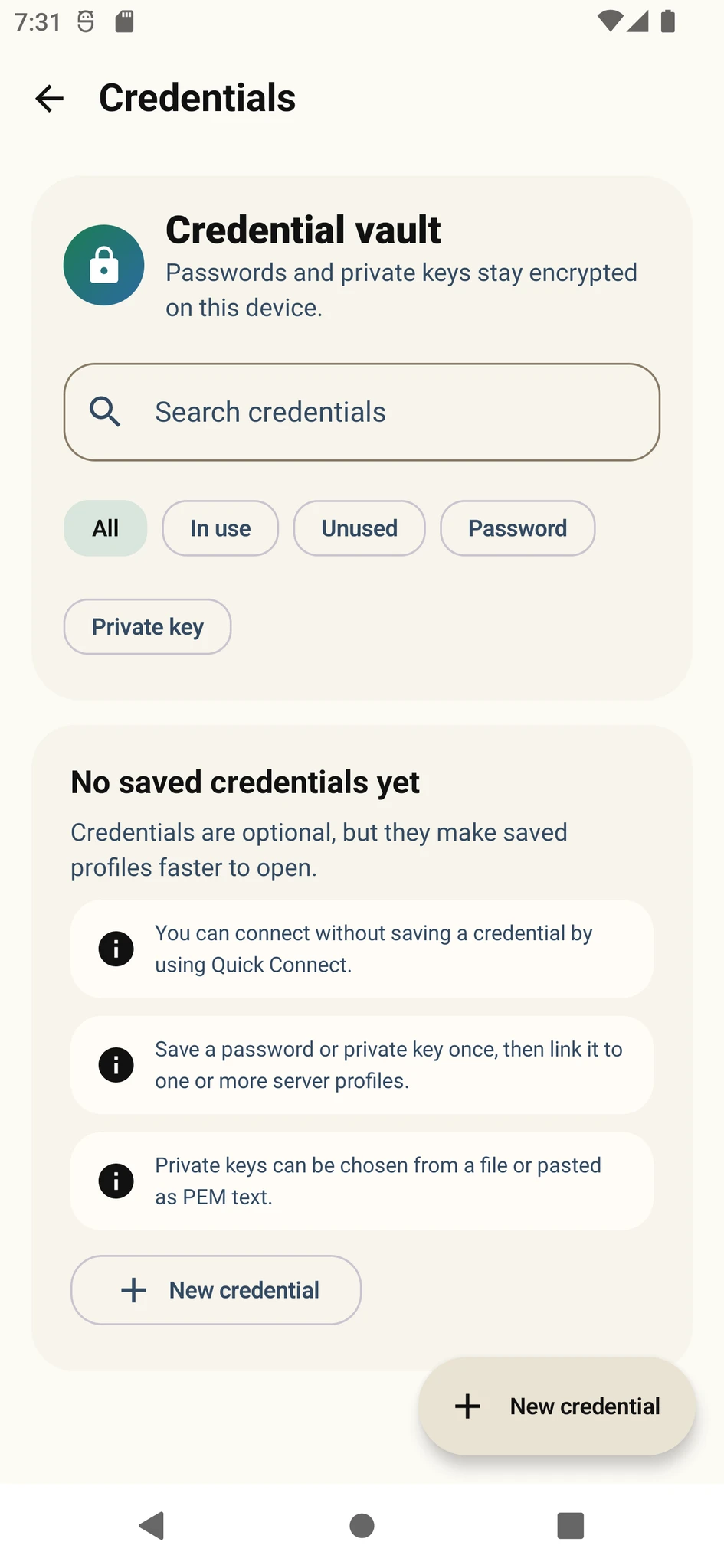
Confirm that the saved profile is not linked to an old password or key.
- 4Read server logs
They can reveal an invalid user, rejected key or unsafe file permission more clearly than the client message.
Put the guide into practice.
Review the related Varkuna product or open its detailed user guide.