SSH Public Key vs Private Key: Authentication Guide
SSH key authentication uses a mathematically related public and private key pair. This guide explains which file can be shared and which one must remain secret.
Public key vs private key
The public key is added to authorized_keys for the server account. The private key remains on your phone, computer or trusted key manager and is never uploaded to the server.
During login, the server verifies cryptographically that the client has the private key without transferring that private key over the network.
| Key | Where is it stored? | Can it be shared? | Purpose |
|---|---|---|---|
| Public key | On the destination server | Yes | Defines which private key may authenticate |
| Private key | On the client device | No | Proves possession of the matching key pair |
How to generate an SSH key pair
Generate the key on a computer you trust using OpenSSH. ED25519 is a common choice for compact, modern keys on current OpenSSH systems. Ask the administrator about supported key types when legacy compatibility is required.
Choose a clear file name and consider a strong passphrase. A passphrase makes a copied private-key file harder to use directly.
ssh-keygen -t ed25519 -a 64 -C "device-or-account-label"cat ~/.ssh/id_ed25519.pubDo not trust random websites that generate or ask you to upload a private key. Generate it locally on your trusted device.
How to add the public key to a server
- 1Get the public key line
Copy the one-line contents of the .pub file. Do not copy the private-key file.
- 2Use the intended account
Install the key in the home directory of the user that will open the SSH session.
- 3Add it to authorized_keys
Place the public key on its own line in ~/.ssh/authorized_keys.
- 4Review permissions
Confirm secure ownership and permissions for .ssh and authorized_keys.
- 5Test a new session
Keep the existing administrator session open until the new key works.
ssh-copy-id -i ~/.ssh/id_ed25519.pub user@serverUsing the private key on Android
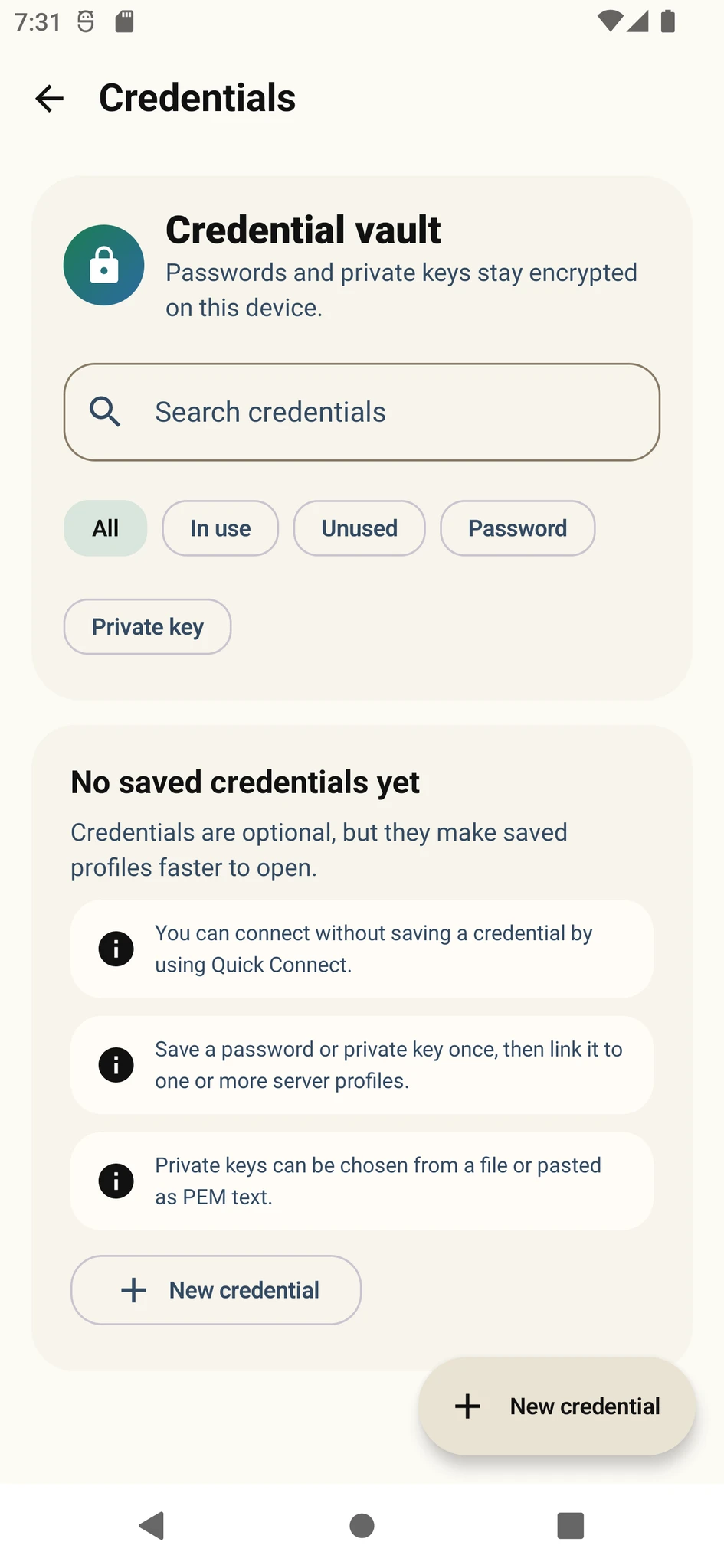
Create a credential in the Android SSH client, select the private-key file and enter its passphrase when required. The key passphrase does not have to match the password of the server account.
Transfer the key to the phone through a protected method you control. Remove unnecessary copies from messaging-app or download folders and keep the device screen lock enabled.
Keep a protected backup or an alternative administrator path that lets you install a replacement public key if the device is lost.
User keys and server host keys are different
Your public/private user key pair proves your identity to the server. A server host key proves the server’s identity to your client and may be saved as a known-host record.
A host key changed warning does not mean your user private key is broken. The server may have been rebuilt or its host key replaced; verify unexpected changes with the administrator.
SSH key security checklist
Support staff and server administrators do not need your private-key file.
Add another layer of protection, especially for keys stored on portable devices.
Different keys for clients, environments or critical servers make revocation and tracking easier.
Delete public-key lines for lost devices and accounts that are no longer used.
Put the guide into practice.
Review the related Varkuna product or open its detailed user guide.