How to Fix SSH Connection Refused and Timed Out Errors
Both errors mean that an SSH session could not open, but they point to different stages of the connection. Reading the exact error prevents unnecessary password and key changes.
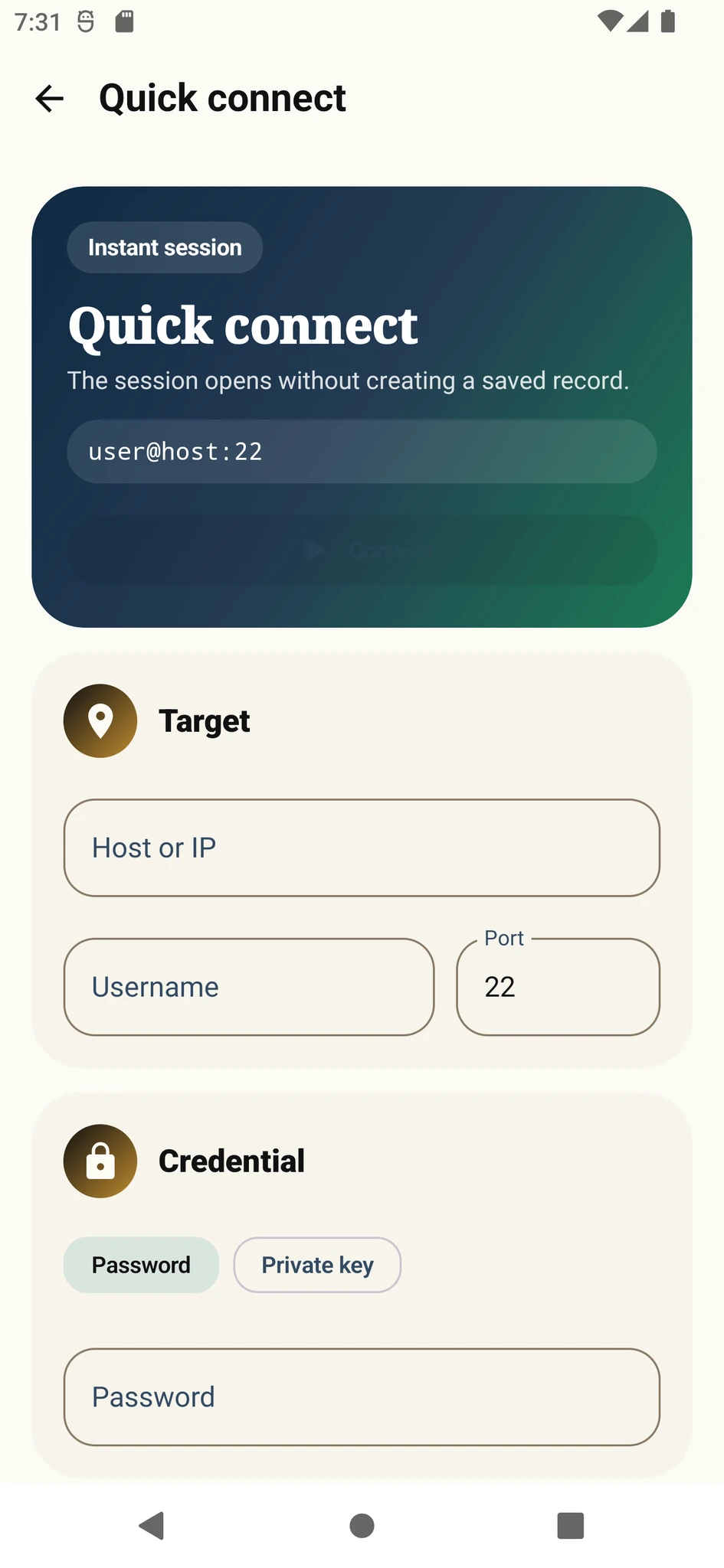
Connection refused vs connection timed out
Connection refused usually means the target server was reached but no SSH service accepted the connection on the selected port. The SSH service may be stopped, listening on another port or explicitly rejecting the connection.
Connection timed out means the client received no response before its timeout. A wrong IP address, an offline server, a routing problem or a firewall silently dropping packets are common causes.
These errors normally happen before password or key authentication begins. Changing credentials will not fix an unresolved network or port problem.
Start with client-side checks
- 1Verify the server address
Check the host name or IP again. Do not include http://, https://, spaces or extra characters.
- 2Verify the SSH port
The default is 22, but the hosting provider or administrator may assign a custom port.
- 3Try another trusted network
Switching between mobile data and trusted Wi-Fi can help identify a local network restriction.
- 4Compare with another client
Test the same host and port from a desktop SSH client when possible. Failure on both devices points toward the server or network.
Confirm that the SSH service is running
If you can use the provider console, check the SSH service. Debian and Ubuntu commonly call it ssh; RHEL and Fedora-based systems commonly use sshd.
Test the configuration before restarting the service. A syntax error followed by a restart can also terminate your remaining path into the server.
sudo systemctl status ssh
sudo sshd -tsudo systemctl status sshd
sudo sshd -tsudo ss -tlnp | grep sshReview the port and firewall
The Port value in sshd_config must match the port in the client. Keep an existing session open while testing a change.
Check that UFW, firewalld or nftables permits only the SSH port you intend to use.
A VPS or cloud network rule can block traffic independently of the firewall inside the server.
For a server behind a router, confirm that the external port forwards to the correct internal IP and port.
Instead of disabling the firewall, allow only the required SSH port and restrict source addresses when practical.
Separate DNS and IPv6 issues
A stale DNS record can direct the client to an old server. Compare the current address in the provider panel with the address resolved by the host name.
Some networks publish an IPv6 record even though the server does not accept SSH over IPv6. Testing with a verified IPv4 address can help isolate DNS or IPv6 behavior.
A server can block ICMP ping while allowing SSH. A failed ping does not prove that the SSH service is unavailable.
Short troubleshooting order
- 1Identify the exact error
Determine whether it says refused or timed out.
- 2Verify host and port
Use the exact values supplied by the provider.
- 3Check the SSH service
Use the server console to inspect the service and listening port.
- 4Check network rules
Review the server firewall, cloud security group and any NAT forwarding.
- 5Then troubleshoot authentication
Once the server asks for a password or key, the network stage has succeeded.
Put the guide into practice.
Review the related Varkuna product or open its detailed user guide.